
MCP support in ChatGPT is currently a beta feature. The interface and availability may change as OpenAI continues development.
Quick Setup
1. Get Your API Key
Sign up at evocrawl.dev/app/api-keys and copy your API key.2. Enable Developer Mode
Open ChatGPT settings by clicking your username in the bottom left corner, or navigate directly to chatgpt.com/#settings. In the settings modal, scroll to the bottom and select Advanced Settings. Toggle Developer mode to ON.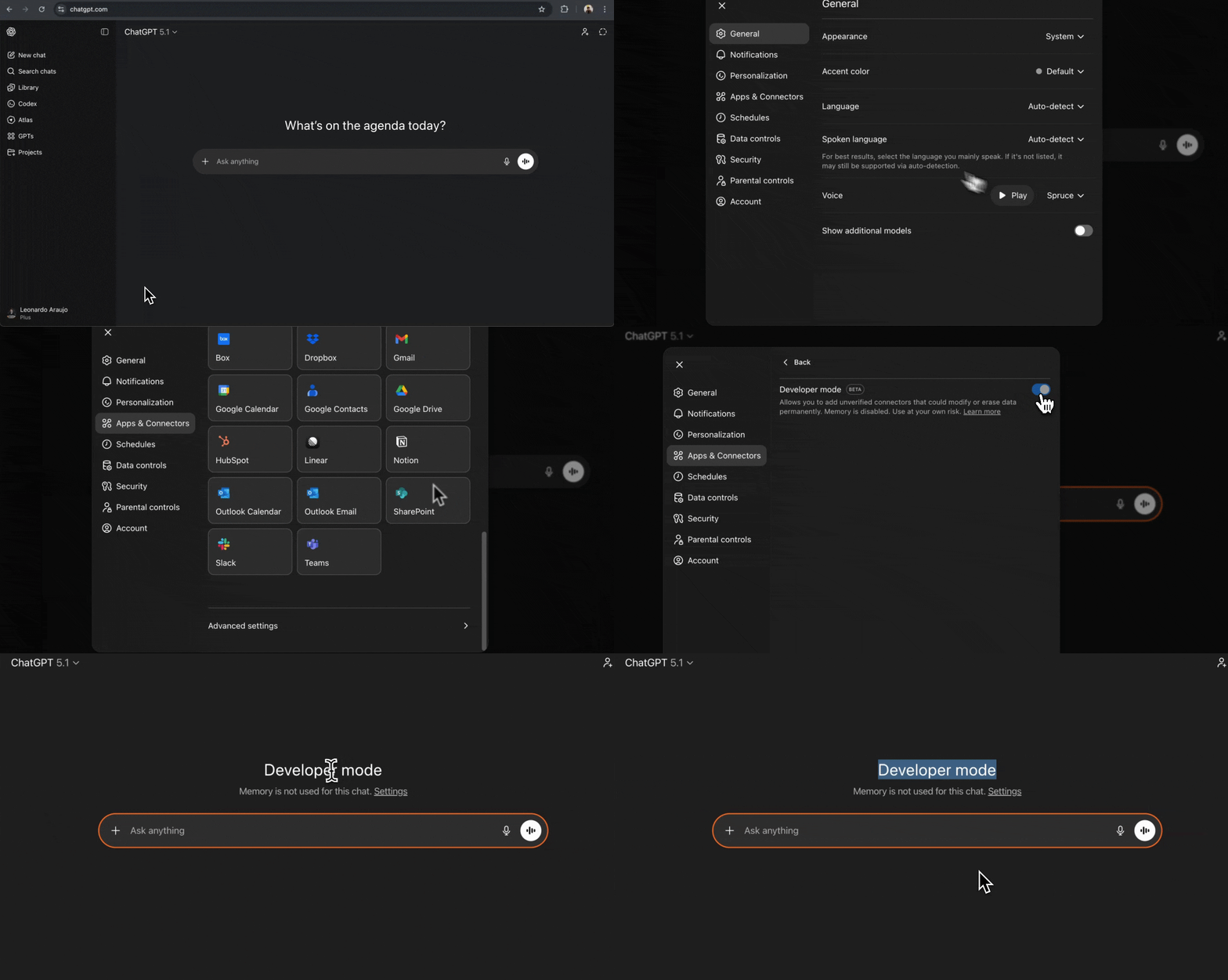
3. Create the Connector
With Developer mode enabled, go to the Apps & Connectors tab in the same settings modal. Click the Create button in the top right corner.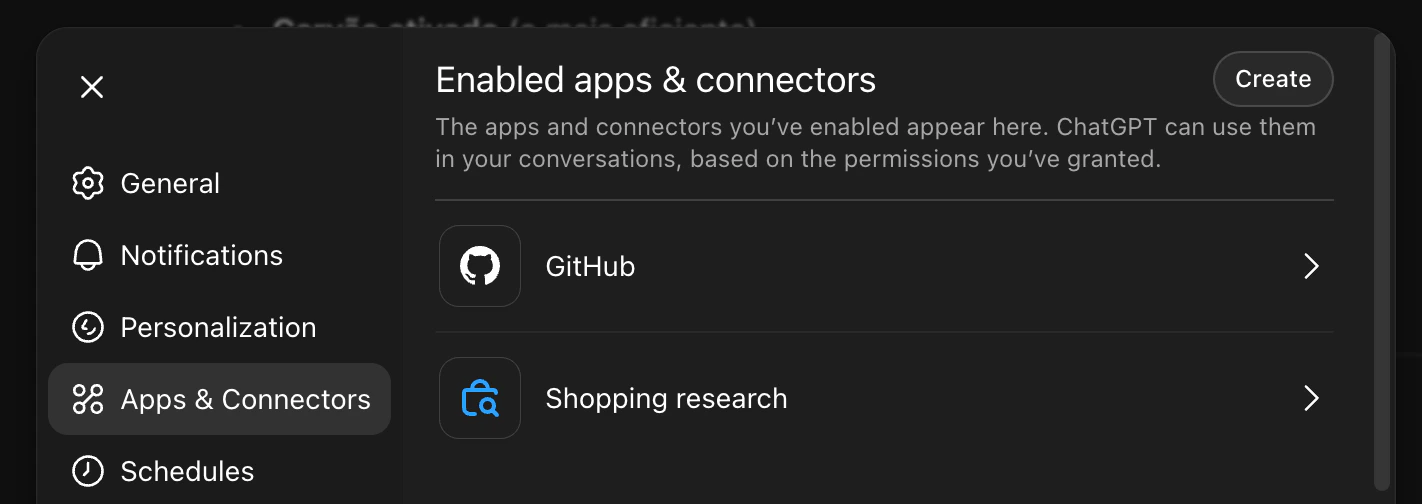
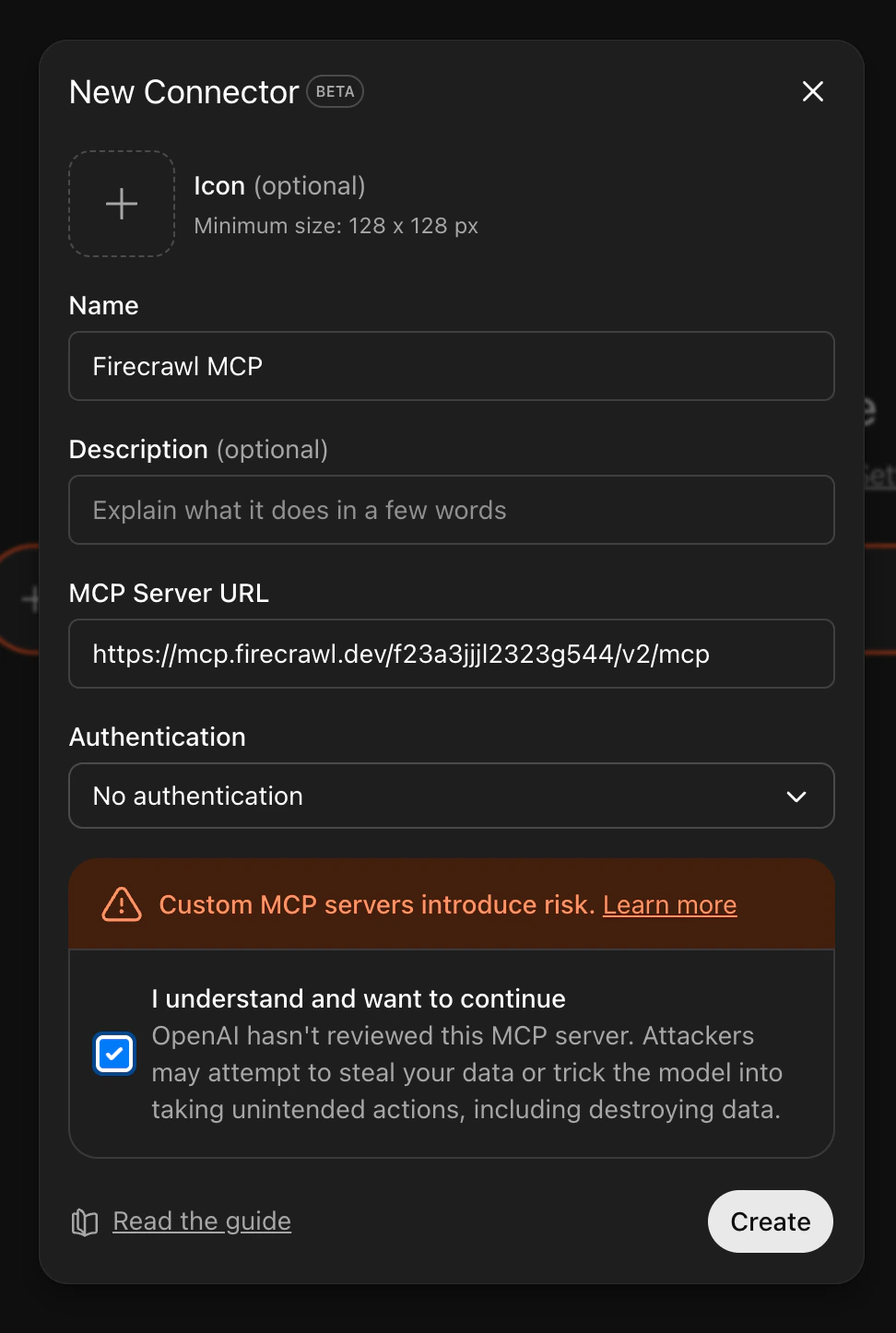
- Name:
Evocrawl MCP - Description:
Web scraping, crawling, search, and content extraction(optional) - MCP Server URL:
https://mcp.evocrawl.dev/YOUR_API_KEY_HERE/v2/mcp - Authentication:
None
YOUR_API_KEY_HERE in the URL with your actual EvoCrawl API key.
4. Verify Setup
Go back to the main ChatGPT interface. You should see Developer mode displayed, indicating that MCP connectors are active. If you do not see Developer mode, reload the page. If it still does not appear, open settings again and verify that Developer mode is toggled ON under Advanced Settings.5. Access Evocrawl Tools
To use Evocrawl in a conversation, click the + button in the chat input, then select More and choose Evocrawl MCP.
Quick Demo
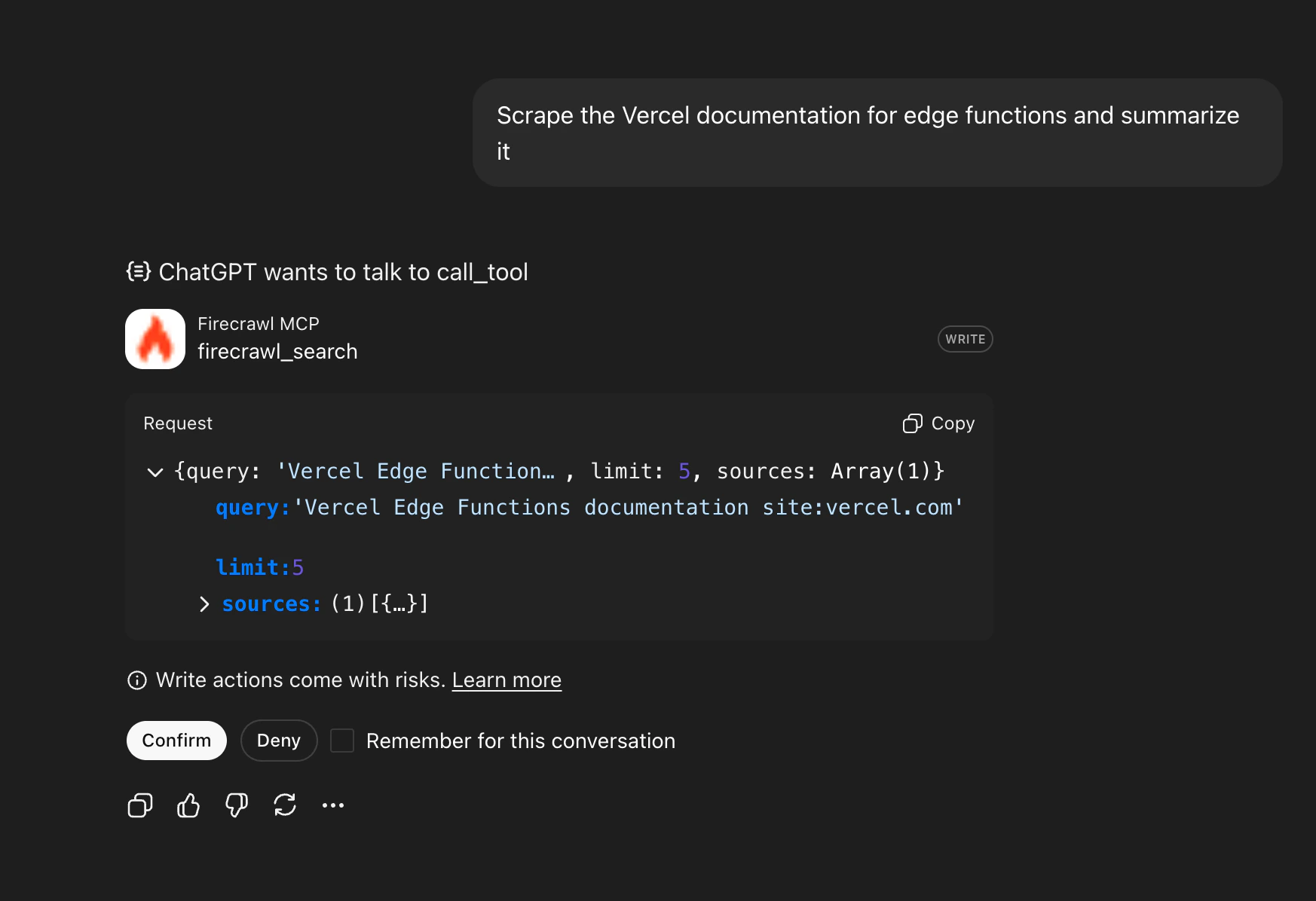
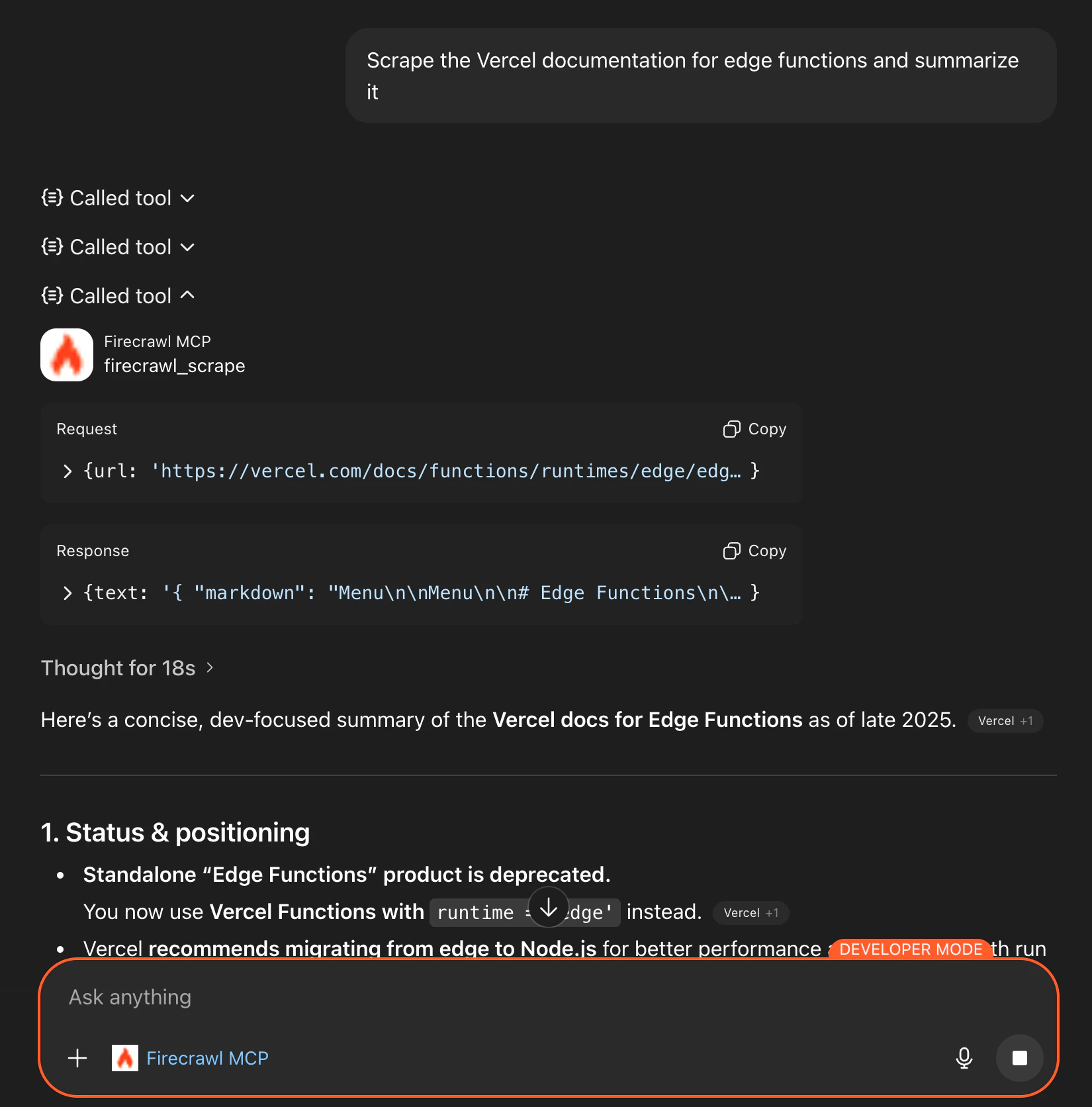
With Evocrawl MCP selected, try these prompts: Search:Tool Confirmation
When ChatGPT uses the Evocrawl MCP tools, you may see a confirmation prompt asking for your approval. Some ChatGPT Desktop versions auto-approve tool calls without showing this dialog. If no prompt appears, you can verify the tool was invoked by checking for a “Called tool” section in the response or reviewing your usage at evocrawl.dev/app/usage.